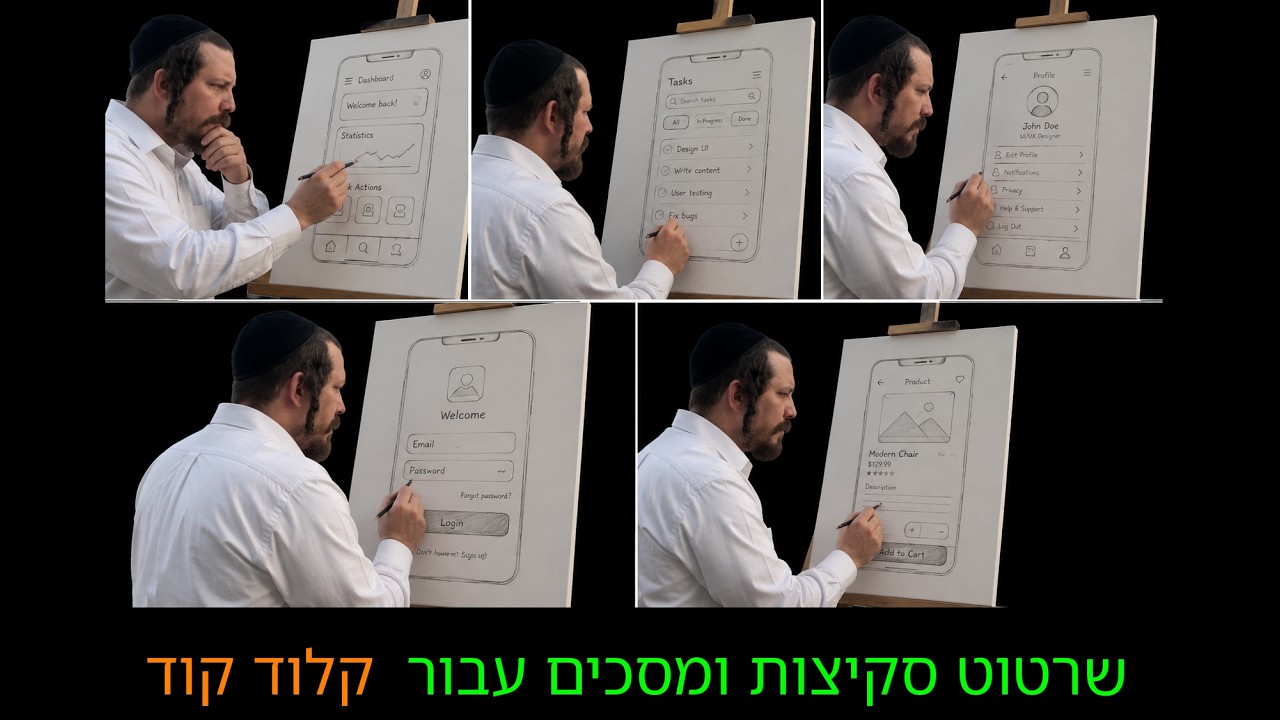
Claude can do a lot of things for you. The one thing it still cannot do is read your mind. There are people working very hard on putting chips in our brains, Ariel notes, but that is not here yet. So in this lesson from his no-code course, where the class is building a giraffe meme generator, he does the old-fashioned thing: he draws the screens. Badly, by his own admission. And then he shows why those ugly boxes are worth more than another paragraph of prompt.
First, what is a meme?
For anyone who has not followed the course: the app lets you come in and generate memes about giraffes. To make sure everyone knows what that means, Ariel has ChatGPT produce one live. A meme here is a picture of two situations: “I want a giraffe as a pet” on one side, and “the budget allows a mouse” on the other. Cute enough that it goes straight into the course club.
Boxes, not art
The question now is simple: what will our screens look like? You can draw phone screens properly, or, as Ariel does, just draw rectangles. He uses Excalidraw and puts the link in the lesson, but any tool works. The output is just an image.
Since the spec says the app has to work in two forms, every page gets two sketches: desktop and mobile. Starting with the home page:
- Desktop: a menu on the side with buttons, and the main area showing the gallery of shared memes.
- Mobile: the gallery, a “shared memes gallery” label, and a hamburger icon for navigation, because that is how navigation is done on phones today. Three lines in a box. Done.
He labels the elements in English, by choice. You can do it in Hebrew, but he believes software is an English world and that this is how you should work. Copy, paste, rename, move on. Page after page.
From picture to file
Next, he zooms in, takes a screenshot of each sketch, and drops the images into the project folder next to an example of what a meme result looks like. The project already holds everything from previous lessons: the idea, the planning docs, and the pages Claude designed for him earlier.
Then the workflow he likes: create a tasks folder and write the task itself in a markdown file, something like T-01.md. The task says, roughly:
- Read the spec first.
- Then read my home page sketch. There is a desktop version and a mobile version.
- Translate all of this into text, for yourself, so you can develop from it.
- Create a new file in the sketches folder with exactly the same name, as detailed as possible about design and UX.
- Then add a reference to it in the spec.
Two small tips along the way. Press F2 on a file to grab its name without the extension, and put names with spaces in quotes so the AI knows it is one thing. And in markdown, wrapping a file name in backticks gives it a little color, which makes the task easier to scan.
Why write tasks in a file instead of the chat box? Because you can sit, write calmly, reread, fix, and only then send. Once the file is ready, in Claude Code (Sonnet 4.6 in this lesson) you type @, start the file name, hit Tab, and press Enter. No need to say anything else.
If you do not see “bypass permissions” at the bottom, Shift+Tab cycles through the modes: auto mode decides by itself what is allowed, accept edits allows file edits but asks about other actions, plan mode only plans, and bypass is the “let me live my life, just do it” mode Ariel wants here.
The sketch catches the misunderstandings
This is the whole point of the lesson. Claude comes back with: “I found something important that was not in the spec. The desktop wants a sidebar on the left instead of top navigation.” Ariel has no idea why AI always loves top navigation, but if he decided he wants it on the left, he wants it on the left. Claude also lists what it understood: no hero component (that big split image banner AI always loves to add), the mobile header is sticky so it stays put while you scroll, the memes are clickable cubes that open large, and the gallery starts out empty.
And then the interesting miss. Ariel wrote “shared memes gallery” as an explanation of what that area shows. Claude read it as a literal page title, and wrote it in as a heading. He decides to keep it for now. But that is exactly why the sketch matters: if he wanted something else there, the sketch just exposed a gap in understanding between him and the AI before a single line of code was written. Same with the navigation buttons. Claude counted three of them, create your own and log in plus a third one, while the spec only knows two actions. Now Ariel knows he has to decide what the buttons actually are.
AI replaces the coder, not the thinker
Ariel admits he is moving fast through Claude’s output, because the goal of the lesson is the method. But the message is clear: AI replaces the programmer. It does not replace the product manager, the project manager, the architect, the entrepreneur, the person doing the thinking. On a real app, you read the output line by line and make sure you agree with it. And yes, people say Hebrew costs about five times more tokens, so take that into account if you work in Hebrew.
One sketch, all pages
He is supposed to do this for every page. He does not have the energy, so he does what anyone would: he tells the AI to take this sketch and turn it into the main template for all pages and all designs. Claude writes a global layout document: sidebar plus main content on desktop, a sticky, scrollable layout on mobile, and how the whole thing should look in general.
You can sketch in Excalidraw, in plain old Windows Paint, or go all the way to Figma, the professional designers’ tool. Ariel shows a free dashboard template he found there, with serious design work on tables, and mentions that Figma has an MCP for Claude Code, a topic for a later lesson. The tool does not matter. The sketch does.
Other lessons from the same course: planning the database, planning the backend, and adding external services.
🔥 Roast Corner
Let’s take a moment for the artist. Ariel opens the lesson by apologizing for his “awful drawings”, and he is not being modest. These are rectangles. Some of them have the word “button” written inside, in case anyone mistook a rectangle labeled “button” for a giraffe. Picasso had his blue period; Ariel has his “I have no idea what is supposed to go here” period, narrated live while drawing the box.
And yet the rectangles won. Claude, a model that has read more design documentation than every UX team on earth combined, looked at Ariel’s boxes and said, with total seriousness, “I discovered something important.” Of course it did. It discovered that a man who drew his navigation on the left wants navigation on the left. Meanwhile the AI’s own deepest design instincts are: top navigation, a giant hero banner, and taking any caption it sees as a page title. Give it a sticky note that says “remember to buy milk” and it will ship a page with an H1 that says Remember To Buy Milk.
The best part is the budget. The spec dreams of giraffes. The meme says the budget allows a mouse. And the lesson’s strategy for the rest of the pages is “I do not have the energy, AI, make this one sketch the template for everything.” That is not laziness. That is the most accurate product management in the whole course: one drawing, one template, ship the mouse.
🤖 AI for Humans
This whole lesson is about making a screen understandable to someone who cannot see inside your head. Visionauta works on a harder version of that problem: making the world understandable to people who cannot see it at all. It is a free accessibility app for blind and low-vision people, built by a blind software engineer who worked at Google and Samsung, available on iPhone and Android.
Its main feature is a real-time conversation with an AI that sees through the phone camera: you talk naturally, without pressing buttons or waiting your turn, and it describes the room, who is nearby, what is on the table, reads signs and expiry dates, tells you where you are and what is around you, and helps you frame a photo properly before it counts down and takes it. It can even read printed sheet music and play it back, something blind musicians have historically needed other people or rare, expensive braille editions for. Many of the everyday tools, like offline text reading and banknote recognition, work without internet.
In its October 2026 release the app grew to 39 languages, including Hebrew, and the AI answers in the user’s own language. Source: Visionauta press release, with an English summary from the University of Saskatchewan’s accessibility office.
💬 Comments